

TutorialsWordPress
Reinstalling WordPress: A step-by-step guide
Sep 15, 2026
By Leonardus N
/
3 min Read
There might be several reasons why you want to reinstall WordPress. Maybe you’re having issues with your WordPress website or you just want a fresh start. Whatever the reason, we’ve got your back! In this article, you’ll learn how to reinstall WordPress
There are two major ways to uninstall and reinstall WordPress. You can either reinstall WordPress while keeping all of your existing content or delete all of your files and install a fresh new copy. We’ll go over both in detail
TL;DR
- To reinstall WordPress without losing content, use Dashboard → Updates → Re-install current version if you still have admin access.
- If the dashboard is unavailable, back up
wp-content, use Hostinger’s Auto Installer with Overwrite Existing Files enabled, and uploadwp-contentback topublic_html. - To fully reinstall WordPress, delete the existing files and database only if you want a clean slate, then install a fresh copy.
Important! We highly recommend making a backup of your WordPress files before attempting anything. Having a failsafe just in case is the best practice
This is the simplest way to reinstall WordPress while keeping all of your content. It requires access to the WordPress dashboard. To do this, go to Dashboard → Updates and click the Re-install (current version) button
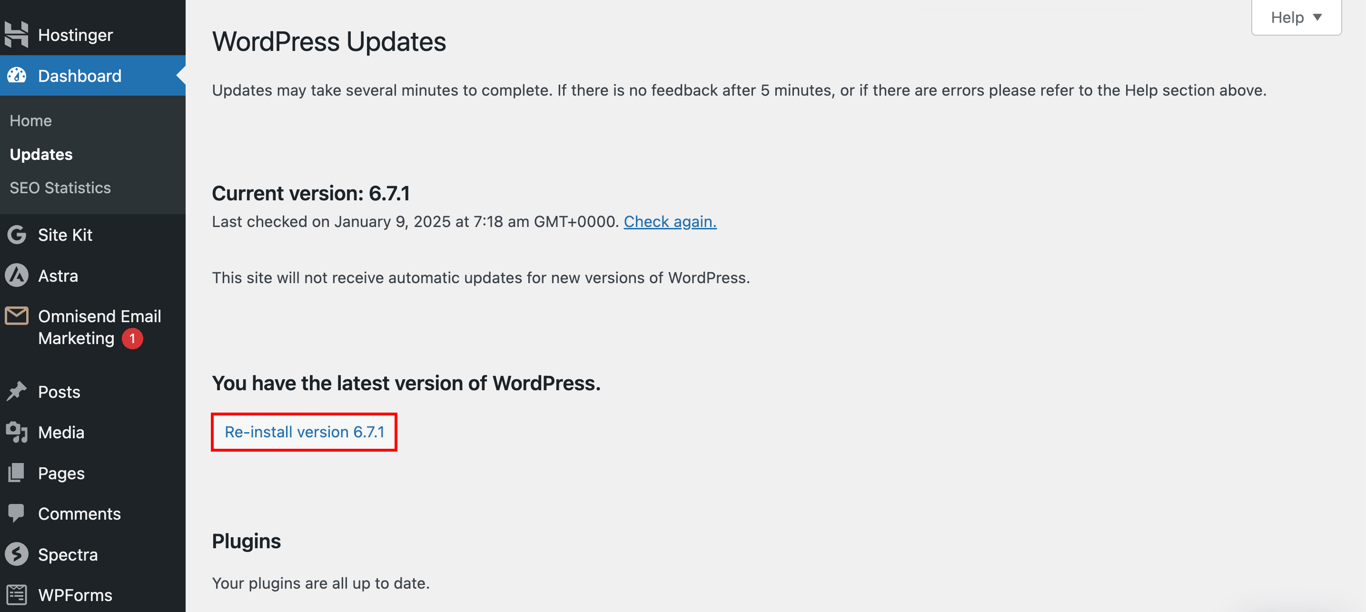
The process is fully automatic, all you need to do is wait several seconds and you’re all set
If you can’t access the WordPress dashboard, don’t fret – you will be able to reinstall WordPress manually using the other methods
If you can’t access your WordPress dashboard, you can use Hostinger’s Auto Installer feature instead. With this method, you must download and re-upload your wp-content files manually
-
Go to your website’s dashboard on Hostinger dashboard and navigate to Files → File Manager
-
Locate the wp-contentfolder inside public_html and Download it to your computer. This process might take a few minutes
-
Exit the File Managerand go to Website → Auto Installer.
-
Select WordPress, and a new window will pop up. Enter all the required information, making sure the Overwrite Existing Files option is selected. Click Install
-
Reopen the File Manager and Uploadthe previously downloaded wp-contentfolder. Make sure you’re uploading the files to public_html
This method replaces the core WordPress files, providing you with a fresh new copy of WordPress while keeping your content files (such as themes and plugins) unchanged
WordPress can also be reinstalled using WP-CLI, a command-line tool that is used to customize your WordPress installation. This tool is readily configured on all of Hostinger’s Managed WordPress plans
Use the following command to reset WordPress without affecting themes and plugins:
wp core download --skip-content --force

You might want to do this if you encounter WordPress errors you can’t fix, or maybe you just want a clean slate and start everything anew
Warning! With this method, all of your content files will be permanently deleted. Be absolutely sure there’s no content worth saving, as once this is done, you won’t be able to undo it
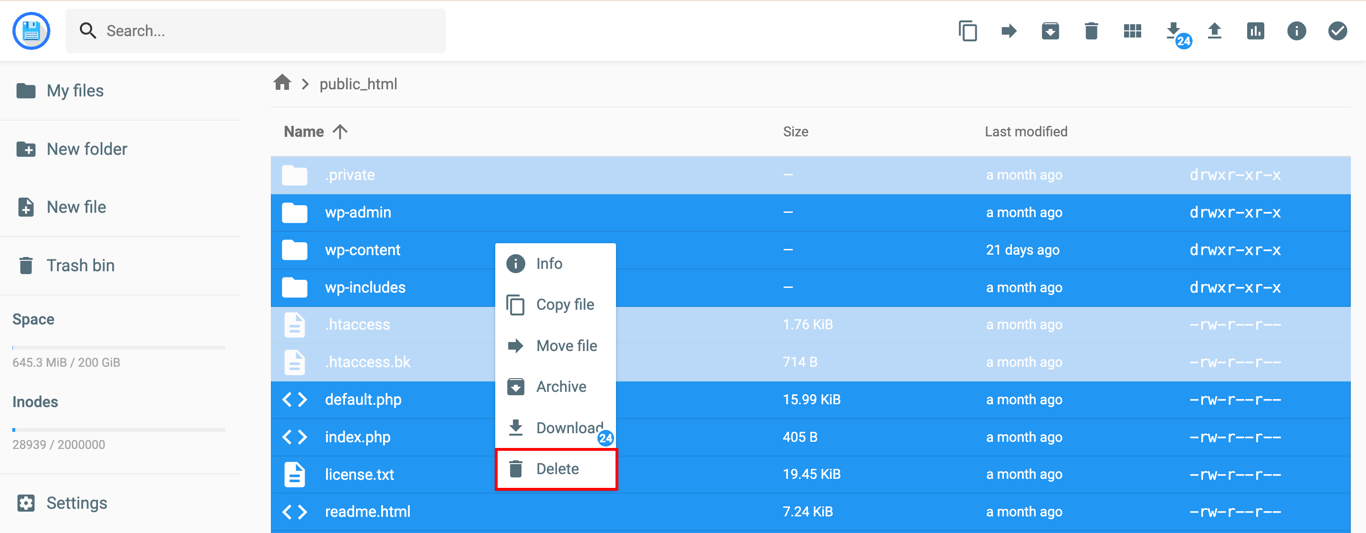
First, delete all of your existing WordPress files using Hostinger File Manager
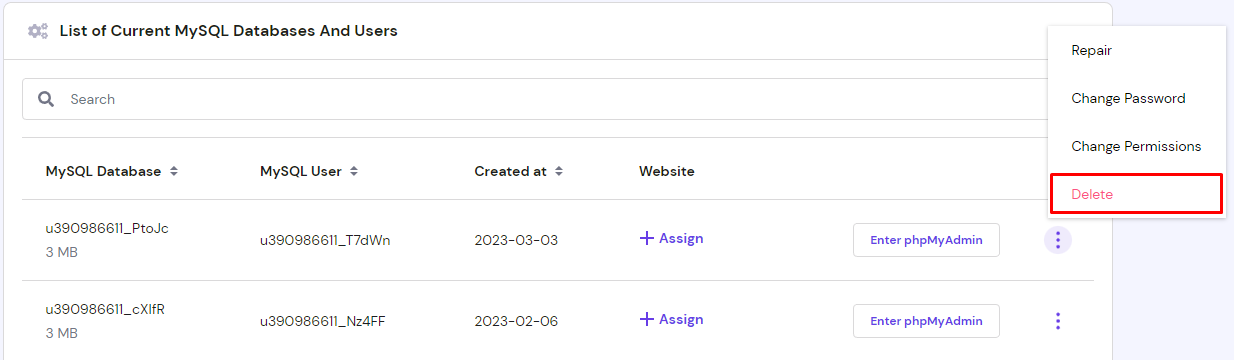
Deleting your WordPress database is not necessary for a fresh installation. However, if you want to completely start over, you can delete the database by navigating to the Databases → Management → Databases List of Current MySQL Databases And Users section in Hostinger dashboard
After that’s done, you can go ahead and install a fresh WordPress copy as if it were a brand-new website. You can do this automatically or manually. With Hostinger, you can use the Auto Installerto reinstall WordPress in a matter of seconds
Reinstalling WordPress is a pretty simple process. Here’s a quick recap:
- By using WordPress dashboard’s Re-install (currentversion) button.
- By downloading the wp-contentfolder, running the WordPress Auto Installer, and then reuploading the wp-contentfolder.
If you’re aiming for the clean slate approach, delete all your WordPress files and its database. Then, simply install a new copy of WordPress automatically or manually
We hope you enjoyed our guide. If you have any questions, feel free to leave a comment below
What is WordPressWhat is WordPress sidebarHow to delete all comments in WordPressHow to embed a video in WordPressGuide to WordPress securityHow to set up WordPress auto-updateGuide to WordPress private pages and posts
All of the tutorial content on this website is subject to
Hostinger’s rigorous editorial standards and values
Related:
Digital Automation Training Benin: 5 Winning Skills Employers Demand in 2026
<a href="https://yoursite.com/automation-africa/" title="WhatsApp Marketing Automation Africa: 6 Dangerous Mistakes Brands Make in Nigeria”>
WhatsApp Marketing Automation Africa: 6 Dangerous Mistakes Brands Make in Nigeria
Want to learn this practically?
Join Justfine Infotech and build real digital skills in AI, automation, web development, digital marketing, office productivity, e-commerce, freelancing and cybersecurity.
Available Programmes:
6 Weeks Certificate • 3 Months Professional Certificate • 6 Months Diploma • Full Professional Diploma
WhatsApp:
+229 01 57 57 99 15
+229 01 66 68 11 60
Source: www.hostinger.com
 English (UK)
  Français