
Send WhatsApp Business messages with AWS End User Messaging Social
WhatsApp reaches over 3 billion monthly active users worldwide — with more than 2 billion using it every day — making it the single most direct channel for customer communication at global scale. AWS End User Messaging Social gives you a managed API to send WhatsApp Business messages without building or maintaining your own WhatsApp Business API integration
Whether you’re building appointment reminders, order notifications, or interactive customer support flows, with WhatsApp Business messaging, you can meet customers where they already communicate
This post is for developers and solutions architects looking to integrate WhatsApp messaging into their customer engagement workflows using AWS. By the end, you will know how to send every supported message type—from straightforward text and media to templates, interactive menus, and WhatsApp Flows—using Python and the AWS End User Messaging Social API
Solution overview
This solution uses AWS End User Messaging Social to connect your WhatsApp Business Account (WABA) with your AWS workloads, enabling automated, two-way messaging with your customers. When a customer sends a WhatsApp message to your WABA phone number, AWS End User Messaging Social receives the message and publishes an event to an Amazon Simple Notification Service (Amazon SNS) topic. Amazon SNS then invokes an AWS Lambda function. You configure this Lambda function to process the incoming message and send a contextual WhatsApp reply to the customer. The following diagram illustrates this architecture:
Figure A: Shows the architecture flow “Customer WhatsApp → End User Messaging Social → SNS → Lambda → End User Messaging Social → Response”
IMPORTANT:Note that any WhatsApp user can send a message to your WABA number and trigger the workflow. To avoid incurring ongoing charges, complete the steps in the “Clean up” section
The solution is deployed using the AWS Serverless Application Model (AWS SAM) and includes a sample Lambda function that demonstrates how to handle common message types, send interactive list messages, and respond with templated replies. You can extend this foundation to build more sophisticated workflows, such as invoking AWS Step Functions for multi-step processes or routing messages to container-based workloads running on AWS. AWS End User Messaging Social also provides unified billing within AWS, streamlining cost management for your WhatsApp messaging workloads.
Prerequisites
Before you run any of the examples in this post, complete the following prerequisites:
- A phone number to link a WABA.
- Connect a verified WhatsApp Business Account (WABA) to AWS End User Messaging Social.
- Install the AWS SDK for Python (Boto3).
- Optionally, install the AWS Command Line Interface (AWS CLI) for template creation (otherwise the templates must be created within the AWS Console UI or Meta’s WhatsApp Manager).
- A phone with WhatsApp Messenger app installed to test the solution. Note that the mobile app uses a different phone number than the one that is associated with your WABA.
This walkthrough typically takes 30–45 minutes, though actual time might vary based on your familiarity with AWS services and WhatsApp Business configuration
If you’re new to AWS End User Messaging Social, see the Getting Started with WhatsApp guide before proceeding
IAM permissions
To configure AWS End User Messaging Social, you will need several types of permissions depending on what you’re setting up. Here are the key permissions required:
Core AWS End User Messaging social permissions
For basic configuration and management, you will need permissions for the following actions:
social-messaging:AssociateWhatsAppBusinessAccount— to associate a WhatsApp Business Account with your AWS accountsocial-messaging:CreateWhatsAppMessageTemplate— to create WhatsApp message templatessocial-messaging:ListLinkedWhatsAppBusinessAccounts— to list linked WhatsApp Business Accountssocial-messaging:GetWhatsAppMessageTemplate— to retrieve message template detailssocial-messaging:ListWhatsAppMessageTemplates— to list message templates
For event destinations (SNS integration)
If you’re configuring event destinations with Amazon SNS, your SNS topic must have a resource policy allowing the sms-voice.amazonaws.com service principal to publish to it, and you will need an AWS Identity and Access Management (IAM) role with a trust policy allowing social-messaging.amazonaws.com to assume it. For detailed setup instructions, see Configuring Event Destinations in the AWS End User Messaging Social User Guide.
For Amazon Connect integration
If integrating with Amazon Connect, the service-linked role (SLR) includes the following permissions:
social-messaging:SendWhatsAppMessagesocial-messaging:PostWhatsAppMessageMediasocial-messaging:GetWhatsAppMessageMediasocial-messaging:GetLinkedWhatsAppBusinessAccountPhoneNumber
For more information, see Amazon Connect Service-Linked Role in the Amazon Connect Administrator Guide
Additional considerations
- If using encrypted SNS topics with AWS KMS, you will need additional AWS Key Management Service (AWS KMS) permissions for the service to generate and decrypt data keys.
Configuration
Create a config.jsonfile in your project directory with the following structure to store the destination WhatsApp number and the origination phone number ID (for example, phone-number-id-a1b2c3d4######) that we’re sending messages from and receiving the message:
{
    "originationPhoneNumberId": "your-whatsapp-phone-number-id",
    "destinationPhoneNumber": "+1234567890"
}
Security note: The config.json file is intended for local testing only. In production environments, avoid hardcoding phone numbers and credentials. Instead, use AWS Secrets Manager, AWS Systems Manager Parameter Store, or environment variables to manage sensitive configuration values
Each example builds a message_data payload and sends it using the following code:
import json
import boto3
import os

config_path = os.path.join(os.path.dirname(__file__), 'config.json')
with open(config_path, 'r') as f:
    config = json.load(f)

client = boto3.client('socialmessaging')
message_data = { ... }

response = client.send_whatsapp_message(
    message=json.dumps(message_data),
    originationPhoneNumberId=config['originationPhoneNumberId'],
    metaApiVersion="v20.0"
)
print(f"Message sent successfully! Response: {response}")
For production use, wrap the send call with error handling to manage throttling and failures gracefully:
try:
    result = client.send_whatsapp_message(
        message=json.dumps(message_data),
        originationPhoneNumberId=config['originationPhoneNumberId'],
        metaApiVersion="v20.0"
    )
    print(f"Message sent. ID: {result['messageId']}")
except client.exceptions.ThrottlingException as e:
    print(f"Rate limited. Retry after backoff: {e}")
except Exception as e:
    print(f"Failed to send message: {e}")
The following sections show only the message_data for each message type. To send any of these messages, use the shared sending code from the previous Configuration section—load config.json, create the Boto3 client, and call client.send_whatsapp_message() with the payload
Text messages
Text messages are plain text communications sent within the 24-hour conversation window. They don’t require Meta template approval and support basic formatting
Specifications and requirements
Text messages are the foundation of WhatsApp conversations. You can send up to 4,096 characters per message. Text messages don’t require Meta approval and work within an active 24-hour conversation window that opens when a customer messages your business first, or when you initiate contact using an approved template
- Maximum length: 4,096 characters (including spaces and formatting)
- 24-hour window requirement:Can only be sent within 24 hours of last customer message
- No WhatsApp template approval required
WhatsApp message example
The following image is a WhatsApp message example
Code example
The following is a code example for the previous message
message_data = {
    "messaging_product": "whatsapp",
    "to": config['destinationPhoneNumber'],
    "type": "text",
    "text": {
        "body": "For the Classic T-Shirt, we recommend size Medium based on your measurements. It runs true to size with a regular fit. Size Medium: Chest 38-40 inches, Length 28 inches."
    }
}
Media messages
With Media messages, you can send images, documents, audio, and video files
Specifications and requirements
- Images: Maximum 5 MB (JPEG, PNG)
- Documents: Maximum 100 MB (PDF, DOC, DOCX, PPT, PPTX, XLS, XLSX)
- Audio: Maximum 16 MB (AAC, MP4, AMR, MP3, OGG)
- Video: Maximum 16 MB (MP4, 3GPP)
Note:Media uploaded to Meta is retained for 30 days. If you reuse media across messages (such as a company logo), use the external URL method or re-upload before sending. The examples in this post use external URLs
Media (document) message example
The message is presented as a PDF with the provided message body in the following example
Code example
The following is a code example for the previous message
message_data = {
    "messaging_product": "whatsapp",
    "to": config['destinationPhoneNumber'],
    "type": "document",
    "document": {
        "link": "https://docs.aws.amazon.com/pdfs/social-messaging/latest/userguide/social-ug.pdf",
        "caption": "U0001F4C4 Your invoice #12345 is ready. Payment due: January 31, 2024. Questions? Reply to this message.",
        "filename": "Invoice-12345.pdf"
    }
}
Media (image) message example
This media message includes an image with a message body in the following example to describe the image. In this case it shows a laptop available for purchase with a link included as part of the message body

Code example
The following is a code example for the previous message
message_data = {
    "messaging_product": "whatsapp",
    "to": config['destinationPhoneNumber'],
    "type": "image",
    "image": {
            "link": "https://signin.aws.amazon.com/v2/assets/_next/static/media/aws-logo@2x.7c50e6f9.png",
            "caption": "Thanks for reaching out to AnyCompany! Here's the product image for the laptop you inquired about. Feel free to reply if you need more details."
    }
}
Template messages
Template messages enable business-initiated conversations outside the 24-hour window. Templates must be created and approved by Meta before use
Text template message creation with parameters
Template creation using CLI
While it’s possible to create templates directly in the AWS End User Messaging Social console and in WhatsApp Manager’s UI, you can also use AWS End User Messaging Social to programmatically create templates using the AWS CLI
Step 1— Create a file named order_confirmation_template.jsonin your working directory with the following template definition
{
    "name": "order_confirmation_template",
    "language": "en",
    "category": "UTILITY",
    "parameter_format": "named",
    "components": [
      {
        "type": "HEADER",
        "format": "TEXT",
        "text": "Order {{order_number}}",
        "example": {
          "header_text_named_params": [
            {"param_name": "order_number", "example": "ORD-2025-001"}
          ]
        }
      },
      {
        "type": "BODY",
        "text": "Hi {{customer_name}},nnYour order has been confirmed!nnItem: {{item_name}}nTotal: {{total_amount}}nEstimated Delivery: {{delivery_date}}nnThank you for shopping
  with us!",
        "example": {
          "body_text_named_params": [
            {"param_name": "customer_name", "example": "John Smith"},
            {"param_name": "item_name", "example": "Wireless Headphones"},
            {"param_name": "total_amount", "example": "$179.17"},
            {"param_name": "delivery_date", "example": "November 30, 2025"}
          ]
        }
      }
    ]
  }
Step 2— Run the following CLI command to create the template. Note that the –template-definition parameter points to the local JSON file that contains the template structure:
aws socialmessaging create-whatsapp-message-template

    --region [AWS_REGION]
    --cli-binary-format raw-in-base64-out
    --id [WABA_ID]

--template-definition file://order_confirmation_template.json
Template creation using the console
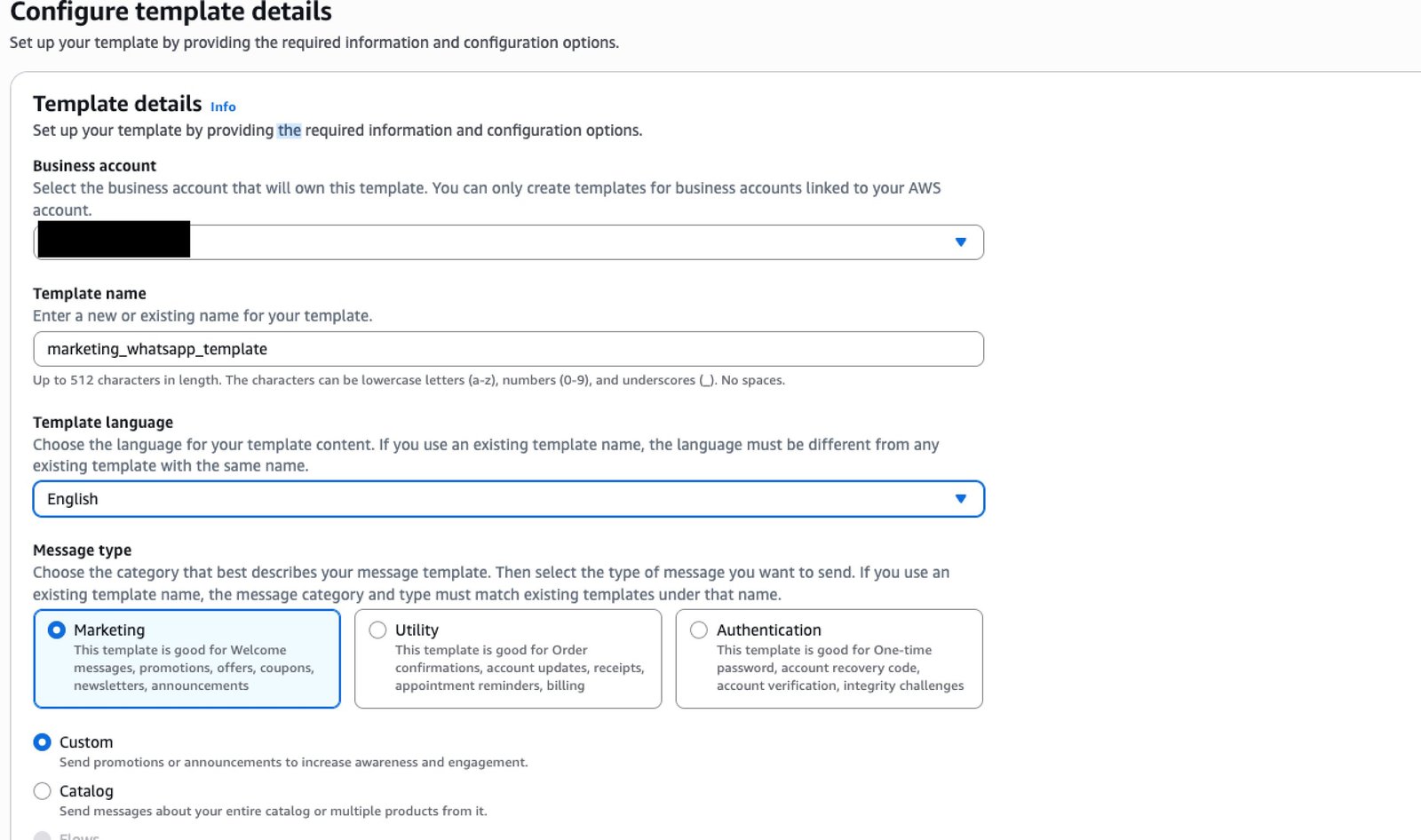
AWS End User Messaging Social also features a built-in template management UI which you can use to create and manage templates directly within the AWS End User Messaging Social portion of the AWS Console under AWS End User messaging > Social Messaging > Message Templates. To create a new template, choose the Create Template button
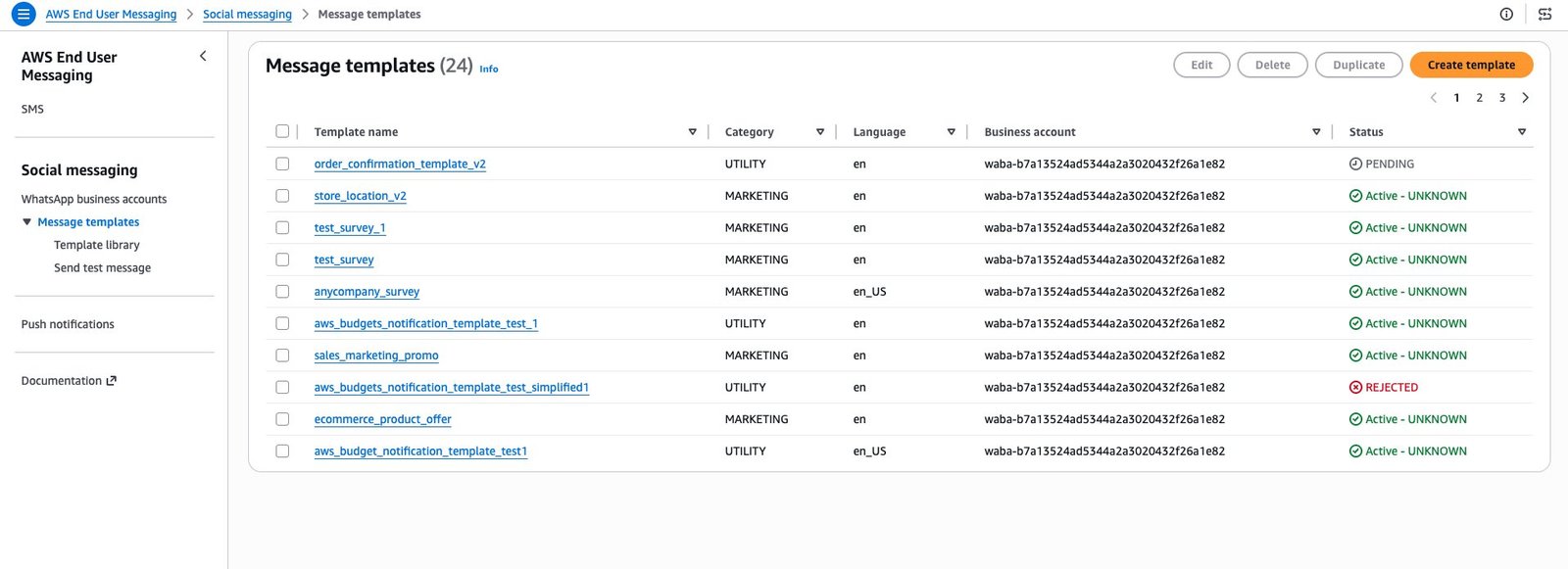
In the first screen, you can set your template name, template language and template type for your respective WhatsApp Business Account
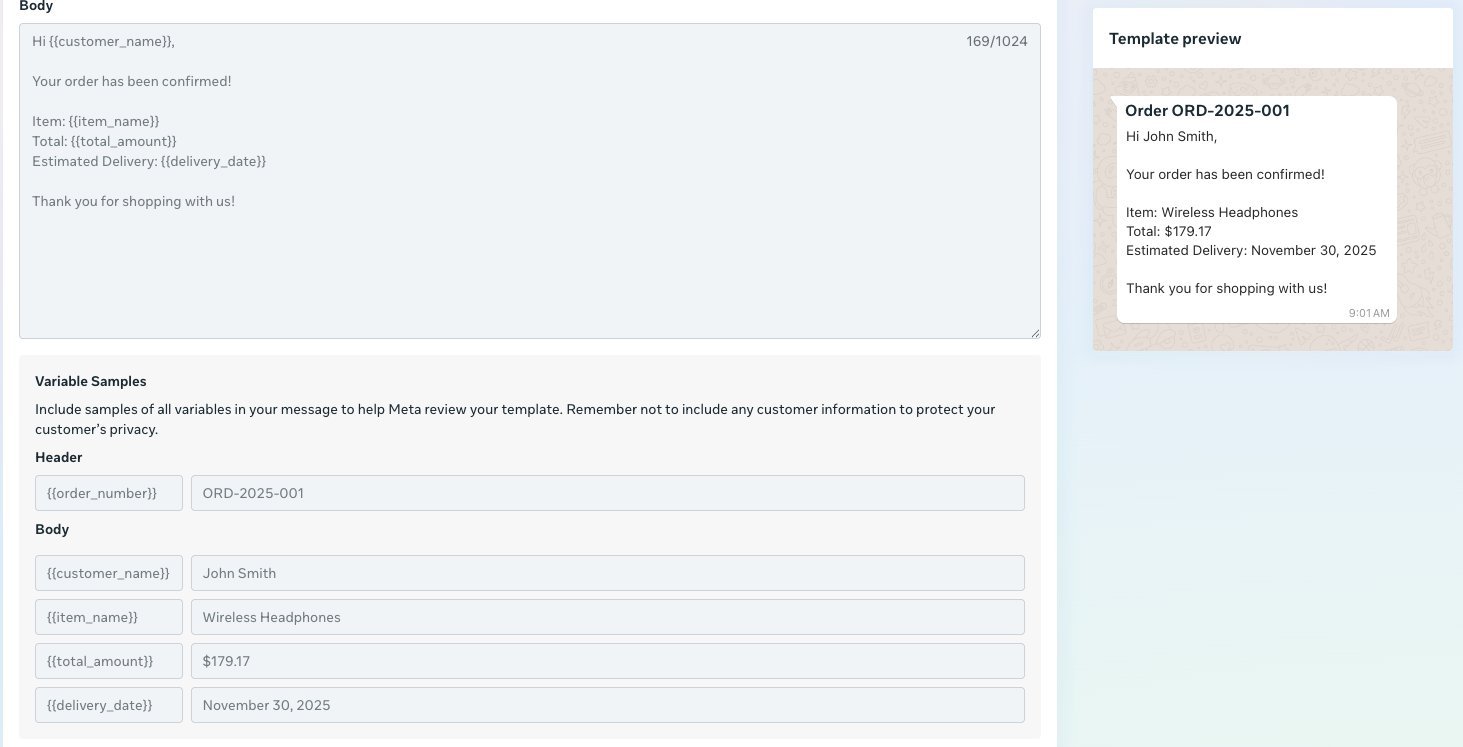
In the second screen, you can set the message content for the template including variables to dynamically populate when sending the message content
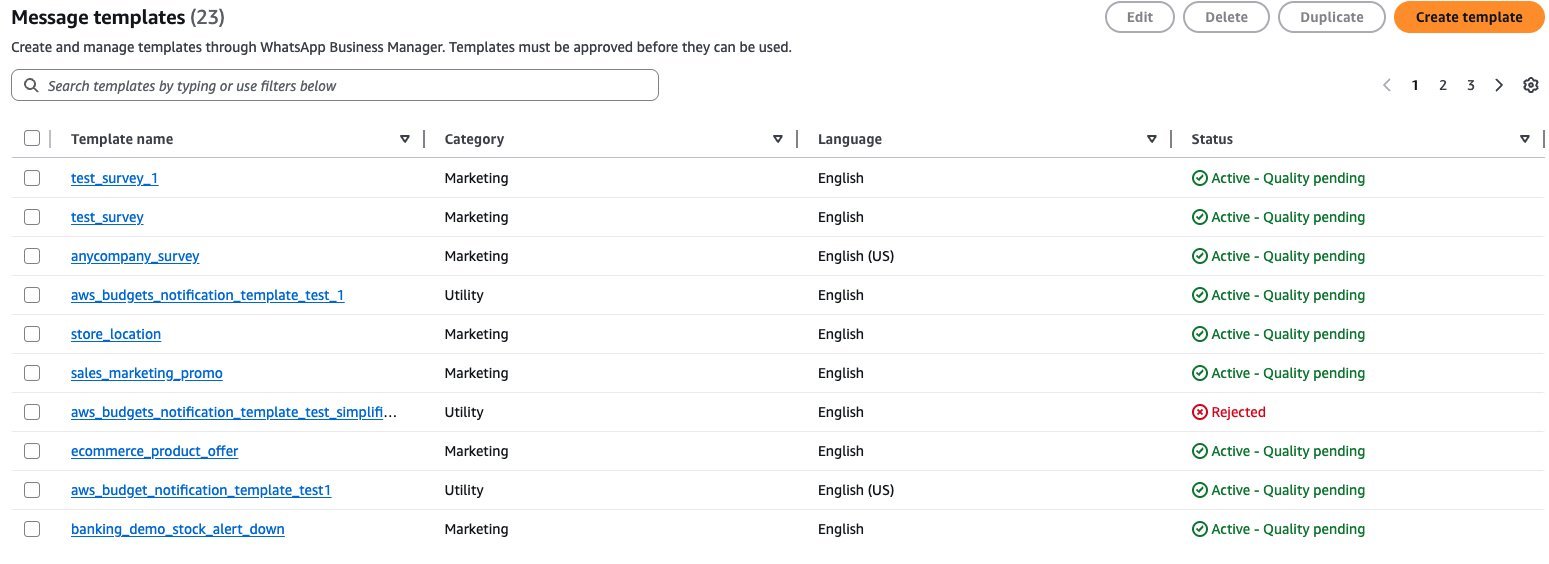
Approved message templates can be seen under the message template screen along with their approval status
Sending the template message
After your template is approved, you can send it with parameter values populated at send time
Important: When sending the template message, you must use the same language and locale that you used when creating the template. For example, a language code of “en” isn’t the same as “en_US”
message_data = {
    "messaging_product": "whatsapp",
    "to": config['destinationPhoneNumber'],
    "type": "template",
    "template": {
        "name": "order_confirmation_template",
        "language": {"code": "en"},
        "components": [
            {
                "type": "header",
                "parameters": [
                    {"type": "text", "parameter_name": "order_number", "text": "ORD-2025-001"}
                ]
            },
            {
                "type": "body",
                "parameters": [
                    {"type": "text", "parameter_name": "customer_name", "text": "John Smith"},
                    {"type": "text", "parameter_name": "item_name", "text": "Wireless Headphones"},
                    {"type": "text", "parameter_name": "total_amount", "text": "$179.17"},
                    {"type": "text", "parameter_name": "delivery_date", "text": "November 30, 2025"}
                ]
            }
        ]
    }
}
Location messages
Location messages share geographic coordinates with optional name and address information. For example, you can send a location for a store branch to a customer
Create template message with CLI
Step 1 — Create a file named store_location_template.json in your working directory with the following template definition:
{
    "name": "store_location",
    "language": "en",
    "category": "UTILITY",
    "parameter_format": "named",
    "components": [
      {
        "type": "HEADER",
        "format": "LOCATION"
      },
      {
        "type": "BODY",
        "text": "Visit our {{store_name}} store!nnOperating Hours: {{hours}}nnSee you soon!",
        "example": {
          "body_text_named_params": [
            {"param_name": "store_name", "example": "Marina Bay Store"},
            {"param_name": "hours", "example": "10 AM - 10 PM"}
          ]
        }
      }
    ]
  }
Step 2 — Run the following CLI command to create the template. The –template-definition parameter references the JSON file that you previously created:
aws socialmessaging create-whatsapp-message-template
    --region [AWS_REGION]
    --cli-binary-format raw-in-base64-out
    --id [WABA_ID]

--template-definition file://store_location_template.json
Location message example
The following image is an example of a location message
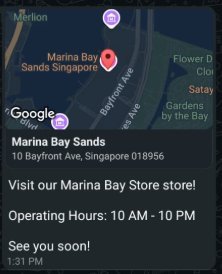
Code example
The following is a code example of the previous location message example
message_data = {
    "messaging_product": "whatsapp",
    "to": config['destinationPhoneNumber'],
    "type": "template",
    "template": {
        "name": "store_location",
        "language": {
            "code": "en"
        },
        "components": [
            {
                "type": "header",
                "parameters": [
                    {
                        "type": "location",
                        "location": {
                            "latitude": "1.2838",
                            "longitude": "103.8591",
                            "name": "Marina Bay Sands",
                            "address": "10 Bayfront Ave, Singapore 018956"
                        }
                    }
                ]
            },
            {
                "type": "body",
                "parameters": [
                    {
                        "type": "text",
                        "parameter_name": "store_name",
                        "text": "Marina Bay Store"
                    },
                    {
                        "type": "text",
                        "parameter_name": "hours",
                        "text": "10 AM - 10 PM"
                    }
                ]
            }
        ]
    }
}
Interactive messages
Interactive messages provide pre-defined response options through buttons or lists. These messages must be sent within the 24-hour conversation window
- Structured responses – Pre-defined options ensure consistent data collection
- Enhanced UX – One-tap interactions reduce friction and improve completion rates
- 24-hour window requirement – Must be sent within active conversation windows
Quick reply buttons message
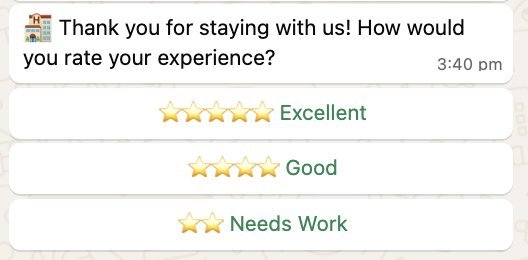
This example demonstrates collecting guest feedback using quick reply buttons for streamlined response collection
Technical specifications:
- Maximum three buttons per message
- Button text limit: 20 characters
- Buttons appear in a horizontal row on most devices
Quick reply buttons message example
The following image is an example of the Quick reply buttons message
Code example
The following is a code example of the previous example image
message_data = {
    "messaging_product": "whatsapp",
    "recipient_type": "individual",
    "to": config['destinationPhoneNumber'],
    "type": "interactive",
    "interactive": {
        "type": "button",
        "body": {
            "text": "U0001F3E8 Thank you for staying with us! How would you rate your experience?"
        },
        "action": {
            "buttons": [
                {
                    "type": "reply",
                    "reply": {
                        "id": "excellent",
                        "title": "u2B50 u2B50 u2B50 u2B50 u2B50 Excellent"
                    }
                },
                {
                    "type": "reply",
                    "reply": {
                        "id": "good",
                        "title": "u2B50 u2B50 u2B50 u2B50 Good"
                    }
                },
                {
                    "type": "reply",
                    "reply": {
                        "id": "needs_improvement",
                        "title": "u2B50 u2B50 Needs Work"
                    }
                }
            ]
        }
    }
}
List Message
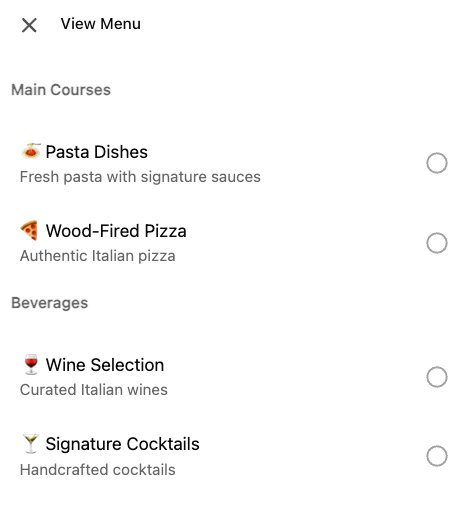
This example shows a restaurant menu using list messages for organized, scrollable content presentation
Technical specifications:
- Max Options: Up to 10 rows total, which can be organized into 10 sections.
- Button Text: Maximum 24 characters to open the menu.
- Sections: A list can contain multiple sections (e.g., “Starters”, “Mains”).
List message example
The following is an image of a list message example
When the user expands the list, they can select individual items to add to their cart
Code example
The following is the code example for the previously mentioned example
message_data = {
    "messaging_product": "whatsapp",
    "recipient_type": "individual",
    "to": config['destinationPhoneNumber'],
    "type": "interactive",
    "interactive": {
        "type": "list",
        "body": {
            "text": "U0001F37DuFE0F Welcome to Bella Vista! Browse our menu categories in the following list:"
        },
        "action": {
            "button": "View Menu",
            "sections": [
                {
                    "title": "Main Courses",
                    "rows": [
                        {
                            "id": "pasta",
                            "title": "U0001F35D Pasta Dishes",
                            "description": "Fresh pasta with signature sauces"
                        },
                        {
                            "id": "pizza",
                            "title": "U0001F355 Wood-Fired Pizza",
                            "description": "Authentic Italian pizza"
                        }
                    ]
                },
                {
                    "title": "Beverages",
                    "rows": [
                        {
                            "id": "wine",
                            "title": "U0001F377 Wine Selection",
                            "description": "Curated Italian wines"
                        },
                        {
                            "id": "cocktails",
                            "title": "U0001F378 Signature Cocktails",
                            "description": "Handcrafted cocktails"
                        }
                    ]
                }
            ]
        }
    }
}
Contact messages
Contact messages share vCard-formatted contact information, useful for sharing business contact details with customers
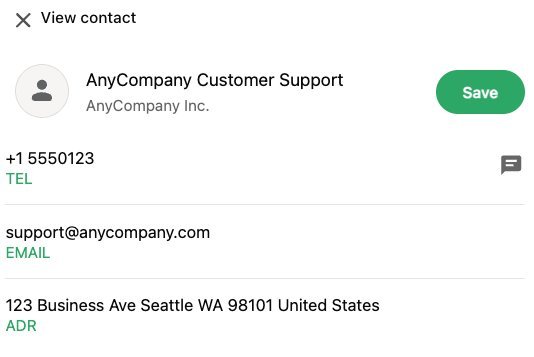
Contact message example
The following is an image of an example contact message
Customers can choose to directly message the contact, save the contact to their contacts list and view details about the contact in a pop up
Code example
The following is a code example for the previously mentioned image example
message_data = {
    "messaging_product": "whatsapp",
    "to": config['destinationPhoneNumber'],
    "type": "contacts",
    "contacts": [
        {
            "name": {
                "formatted_name": "AnyCompany Customer Support",
                "first_name": "Customer",
                "last_name": "Support"
            },
            "org": {
                "company": "AnyCompany Inc."
            },
            "phones": [
                {
                    "phone": "+1-555-0123",
                    "type": "WORK",
                    "wa_id": "15550123"
                }
            ],
            "emails": [
                {
                    "email": "support@anycompany.com",
                    "type": "WORK"
                }
            ],
            "urls": [
                {
                    "url": "https://www.anycompany.com",
                    "type": "WORK"
                }
            ],
            "addresses": [
                {
                    "street": "123 Business Ave",
                    "city": "Seattle",
                    "state": "WA",
                    "zip": "98101",
                    "country": "United States",
                    "country_code": "US",
                    "type": "WORK"
                }
            ]
        }
    ]
}
WhatsApp Flows
WhatsApp Flows can help power interactive experiences. Note that a verified WhatsApp Business Account is required to use WhatsApp Flows. There are two general types of WhatsApp Flows:
- Without an endpoint— Results are stored and can be viewed directly within WhatsApp Manager. This is the type demonstrated in this post.
- With an endpoint — Results are sent to an API endpoint that you specify for further processing.
WhatsApp Flow – survey
This is an example of a WhatsApp Flow without an endpoint that sends a product survey to customers. Since this flow doesn’t use an endpoint, the results can be viewed directly within WhatsApp Manager
Create WhatsApp Flow using Flow Playground
First create a WhatsApp Flow using the Flows Playground on the Meta for Developers website
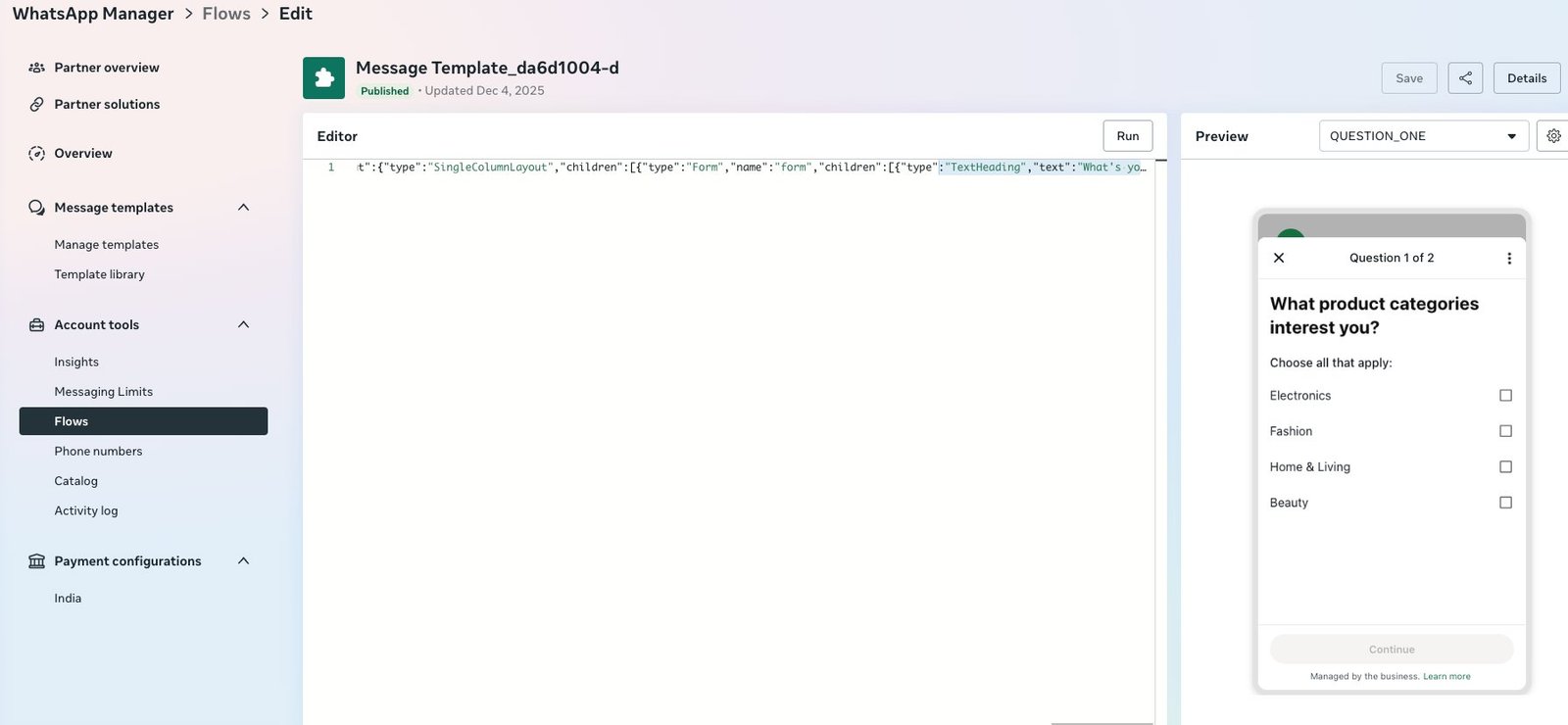
You can use the following JSON in the editor to use the example flow that we’re creating
{"version":"7.2","screens":[{"id":"QUESTION_ONE","title":"Question 1 of 2","data":{},"layout":{"type":"SingleColumnLayout","children":[{"type":"Form","name":"form","children":[{"type":"TextHeading","text":"What product categories interest you?"},{"type":"CheckboxGroup","label":"Choose all that apply:","required":true,"name":"product_categories","data-source":[{"id":"electronics","title":"Electronics"},{"id":"fashion","title":"Fashion"},{"id":"home","title":"Home & Living"},{"id":"beauty","title":"Beauty"}]},{"type":"Footer","label":"Continue","on-click-action":{"name":"navigate","next":{"type":"screen","name":"QUESTION_TWO"},"payload":{"product_categories":"${form.product_categories}"}}}]}]}},{"id":"QUESTION_TWO","title":"Question 2 of 2","data":{"product_categories":{"type":"array","items":{"type":"string"},"__example__":[]}},"terminal":true,"success":true,"layout":{"type":"SingleColumnLayout","children":[{"type":"Form","name":"form","children":[{"type":"TextHeading","text":"What's your typical budget?"},{"type":"RadioButtonsGroup","label":"Choose one:","required":true,"name":"budget_range","data-source":[{"id":"under_50","title":"Under $50"},{"id":"50_150","title":"$50 - $150"},{"id":"over_150","title":"Over $150"}]},{"type":"Footer","label":"Submit","on-click-action":{"name":"complete","payload":{"product_categories":"${data.product_categories}","budget_range":"${form.budget_range}"}}}]}]}}]}Afterwards you will be prompted to create the template to attach to the flow
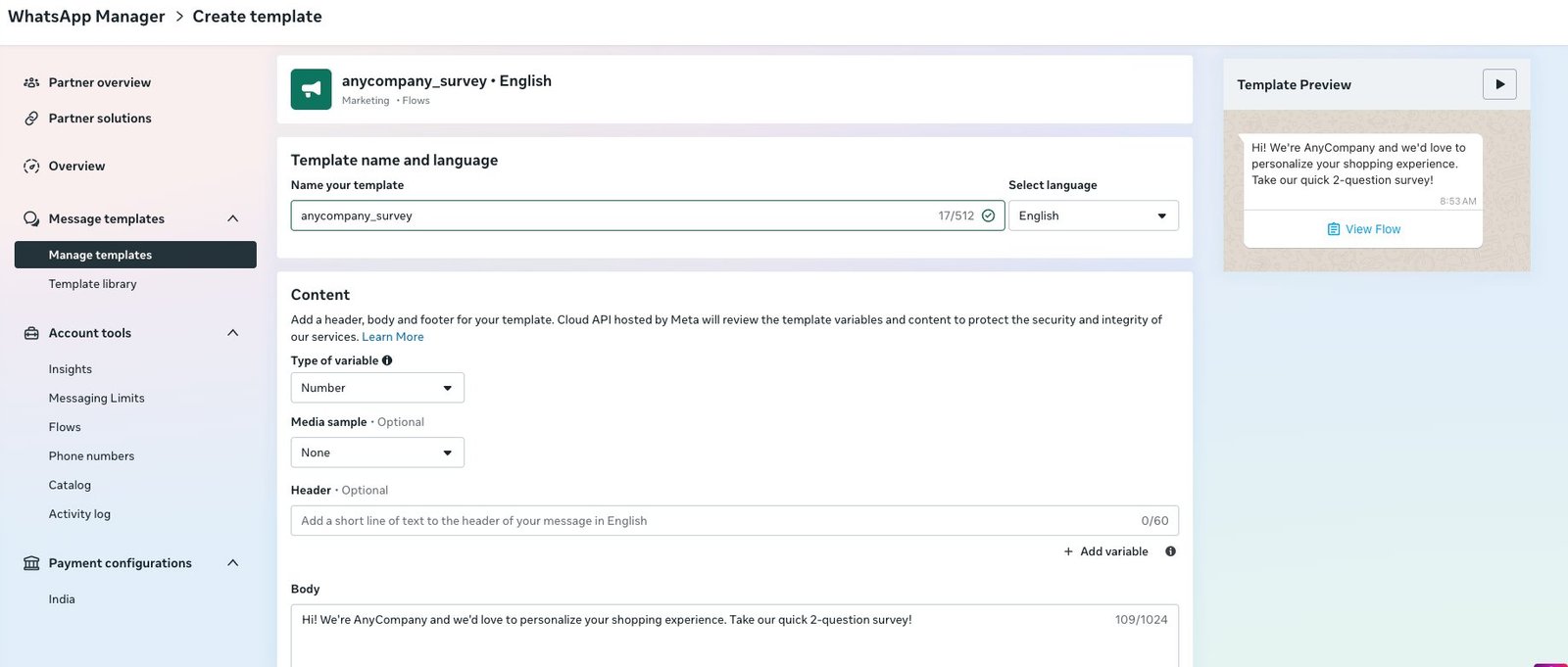
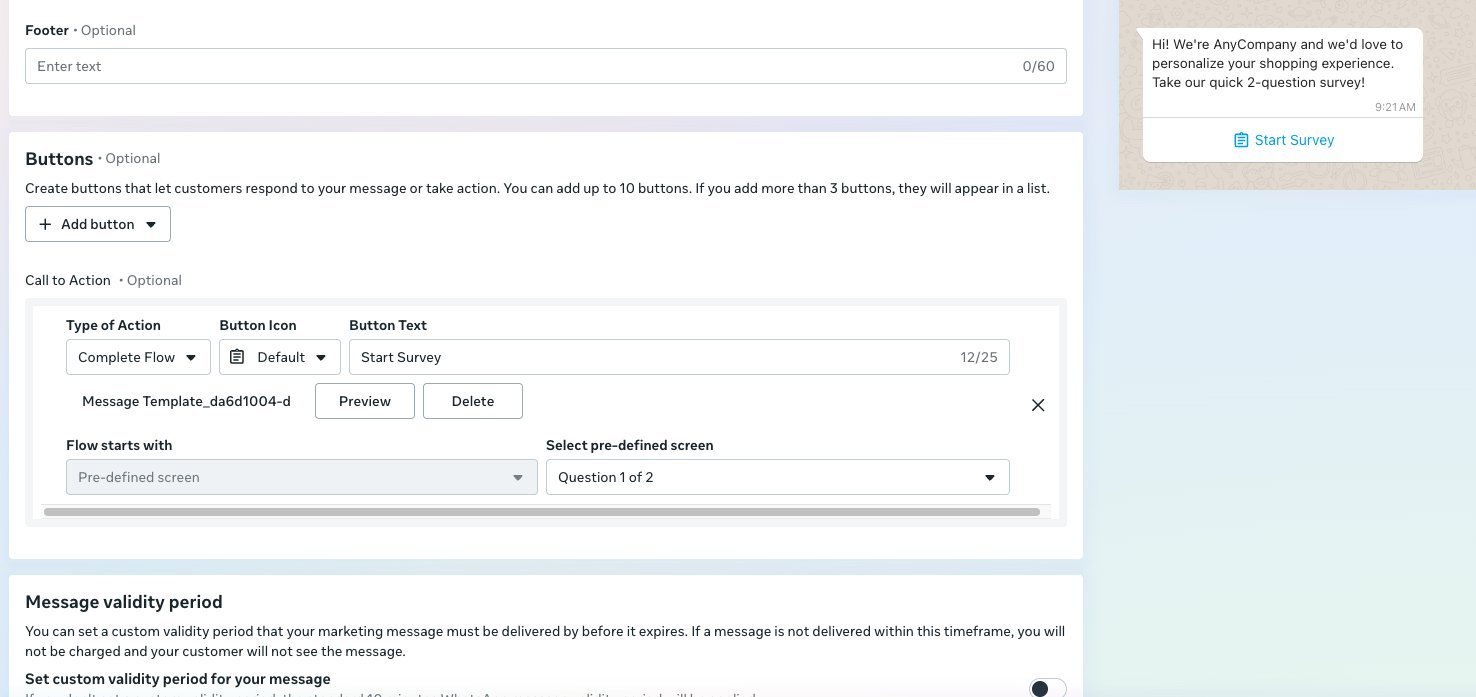
Create WhatsApp template using AWS CLI
Step 1 — Create a file named anycompany_survey_template.jsonin your working directory with the following template definition. Notice that the Flow JSON is embedded directly in the flow_jsonfield of the button component:
{ "name": "anycompany_survey", "language": "en_US", "category": "MARKETING", "components": [ { "type": "BODY", "text": "Hi! We're AnyCompany and we'd love to personalize your shopping experience. Take our quick 2-question survey!" }, { "type": "BUTTONS", "buttons": [ { "type": "FLOW", "text": "Start Survey", "flow_json": "{"version":"7.2","screens":[{"id":"QUESTION_ONE","title":"Question 1 of 2","data":{},"layout":{"type":"SingleColumnLayout","children":[{"type":"Form","name":"form","children":[{"type":"TextHeading","text":"What product categories interest you?"},{"type":"CheckboxGroup","label":"Choose all that apply:","required":true,"name":"product_categories","data-source":[{"id":"electronics","title":"Electronics"},{"id":"fashion","title":"Fashion"},{"id":"home", "title":"Home & Living"},{"id":"beauty","title":"Beauty"}]},{"type":"Footer","label":"Continue","on-click-action":{"name":"navigate","next":{"type":"screen","name":"QUESTI ON_TWO"},"payload":{"product_categories":"${form.product_categories}"}}}]}]}},{"id":"QUESTION_TWO","title":"Question 2 of 2","data":{"product_categories":{"type":"array","items":{"type":"string"},"__example__":[]}},"terminal":true,"success":true,"layout":{"type":"SingleColumnLayout","children":[{"type":"Form","name":"form","children":[{"type":"TextHeading","text":"What's your typical budget?"},{"type":"RadioButtonsGroup","label":"Choose one:","required":true,"name":"budget_range","data-source":[{"id":"under_50","title":"Under $50"},{"id":"50_150","title":"$50 - $150"},{"id":"over_150","title":"Over $150"}]},{"type":"Footer","label":"Submit","on-click-action":{"name":"complete","payload":{"product_categories":"${data.product_categories}","budget_range":"${form .budget_range}"}}}]}]}}]}", "flow_action": "navigate" } ] } ] }Step 2 — Run the following CLI command to create the template. The –template-definitionparameter references the JSON file that you previously created:
aws socialmessaging create-whatsapp-message-template
--region [AWS_REGION]
--cli-binary-format raw-in-base64-out
--id [WABA_ID]
--template-definition file://anycompany_survey_template.json
Sending the WhatsApp Flow
After the Template and Flow are approved, a message can be sent with the following code
message_data = {
    "messaging_product": "whatsapp",
    "to": config['destinationPhoneNumber'],
    "type": "template",
    "template": {
        "name": "anycompany_survey",
        "language": {
            "code": "en_US"
        },
        "components": [
            {
                "type": "button",
                "sub_type": "flow",
                "index": "0",
                "parameters": [
                    {
                        "type": "action",
                        "action": {
                            "flow_token": "survey-12345",
                            "flow_action_data": {
                                "screen": "QUESTION_ONE"
                            }
                        }
                    }
                ]
            }
        ]
    }
}
WhatsApp Flow survey example
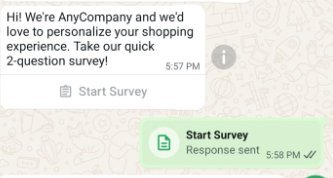
The Flow will appear with the message body specified and a link to start the survey
The recipient can provide their answers on each page of the Flow which can be submitted at the end
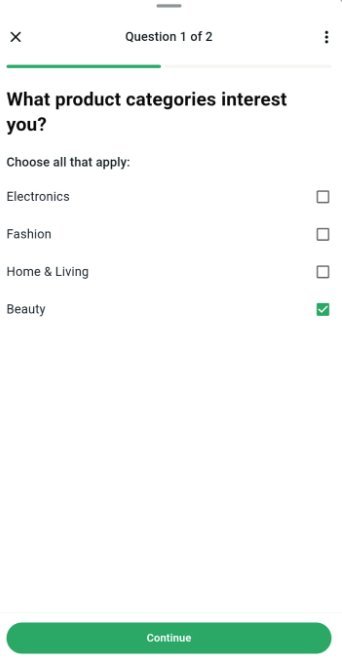
After providing inputs, the Flow will show a completed message
Clean up
To avoid incurring future charges, delete the re
- In the AWS End User Messaging Social console, disassociate (unlink) the WhatsApp Business Account.
- Navigate to Message Templates and delete any test templates that you created.
- Delete any WhatsApp Flows you created in the Flow Playground on the Meta for Developers website.
- Review your Amazon CloudWatch Logs for any log groups created by the service and delete them if no longer needed.
- Optionally, if you provisioned a phone number in End User Messaging SMS just for WhatsApp release the phone number in End User Messaging SMS.
For templates created in WhatsApp Manager, you can also delete them directly from the WhatsApp Business Manager interface on the Meta for Developers website
Conclusion
In this post, you learned how to send various WhatsApp Business message types using AWS End User Messaging Social, including text messages, media messages, template messages, location messages, interactive messages, contact messages, and WhatsApp Flows
AWS End User Messaging Social provides a managed API that removes the complexity of maintaining your own WhatsApp Business API integration, so you can focus on building engaging customer experiences. The service handles the heavy lifting of managing WhatsApp Business API connections, template approvals, and message delivery, while providing you with a unified, consistent API interface
Next steps
- Explore advanced template features with dynamic content and media headers
- Implement webhook handlers for incoming messages and delivery receipts
- Set up automated message flows for common customer inquiries using Amazon EventBridge
- Integrate with Amazon Connect for omnichannel customer support experiences
We’d love to hear about your experience! Share your use cases and implementation approaches in the comments
Additional resources
- AWS End User Messaging Social Documentation
- AWS End User Messaging Social API Reference
- AWS End User Messaging Social User Guide
- WhatsApp Business Platform API Documentation on the Meta for Developers website
- WhatsApp Flows Documentation on the Meta for Developers website
- AWS End User Messaging Social Console
About the authors
Related:
Digital Automation Training Benin: 5 Winning Skills Employers Demand in 2026
WhatsApp Marketing Automation Africa: 6 Dangerous Mistakes Brands Make in Nigeria
Want to learn this practically?
Join Justfine Infotech and build real digital skills in AI, automation, web development, digital marketing, office productivity, e-commerce, freelancing and cybersecurity.
Available Programmes:
6 Weeks Certificate • 3 Months Professional Certificate • 6 Months Diploma • Full Professional Diploma
WhatsApp:
+229 01 57 57 99 15
+229 01 66 68 11 60
Source: aws.amazon.com