


Apprendre comment automate Excel reports with ChatGPT is the single fastest way for administrative clerks, accountants, and executive secretaries to save hours of tedious manual calculations every single week. Across corporate offices, public sector ministries, and multilateral NGOs in Cotonou, Porto-Novo, and Calavi, office personnel continue to burn hours manually copying data rows, fixing broken formula references, and re-typing monthly budget tallies. This manual grind causes needless fatigue, increases human data errors, and keeps talented administrators trapped in low-leverage clerical tasks.
Modern office administration has evolved beyond mechanical data entry. Today, high-performing administrators leverage artificial intelligence and natural language prompts to transform messy raw data into polished executive dashboards in minutes. By mastering practical office automation Benin techniques, you can eliminate routine data reconciliation and present clear, audit-ready reports that executive directors can rely on immediately.
Table des matières
- The Administrative Bottleneck: Why Manual Spreadsheets Slow Teams Down
- Preparing Your Data: Privacy and Formatting Guardrails
- The 3-Step Rapid Workflow to Automate Excel Reports With ChatGPT
- Mastering Natural Language Prompts: Practical Formula & Macro Templates
- Manual Data Entry vs. AI-Assisted Spreadsheet Productivity
- Transform Your Workplace Value at Justfine Digital & AI Skills Academy
- Foire aux questions (FAQ)
The Administrative Bottleneck: Why Manual Spreadsheets Slow Teams Down
Every month, finance officers and executive assistants face identical operational bottlenecks. Invoices arrive in varied layouts, inventory ledgers feature inconsistent regional date formats, and departmental expense sheets require manual cross-referencing.
Relying solely on memory to write advanced nested formulas (like XLOOKUP, INDEX/MATCH, or complex conditional arrays) frequently leads to frustrating calculation errors. When an urgent report is demanded by board members or department heads, hunting down a misplaced parenthesis or mismatched cell range steals valuable time.
By applying conversational AI to spreadsheet mechanics, you change how analysis happens. Rather than memorizing every syntax quirk, you instruct the AI using plain commercial language, review the output, and paste validated formulas directly into your sheets.
Preparing Your Data: Privacy and Formatting Guardrails
Before you feed operational data into an AI tool, you must follow strict enterprise security practices. Protecting institutional confidentiality is the first rule of modern digital administration.
- Anonymize Sensitive Identifiers: Never upload confidential customer names, bank account numbers, or employee identification codes into public AI interfaces.
- Standardize Column Headers: Replace merged cells with single-row descriptive headers (e.g., Transaction_Date, Expense_Category, Amount_CFA, Department).
- Share Layout Structure, Not Raw Records: When asking for complex formula architectures, share only your header row and two sample data lines with dummy numbers.
To establish comprehensive security practices for modern workplace software, explore our complete guide on [Internal Link: Justfine Academy Course Catalog / Academic Programs].
The 3-Step Rapid Workflow to Automate Excel Reports With ChatGPT
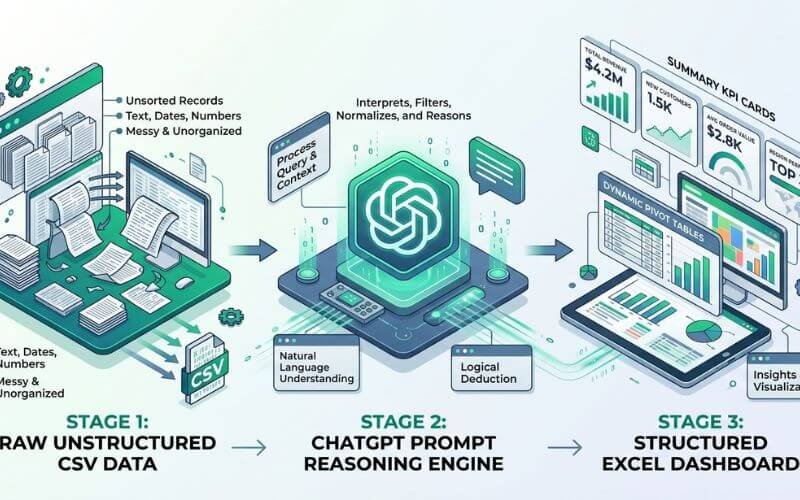
Turning unstructured row data into an executive summary takes three structured steps:
[Raw Data Columns] ──► [Structured Prompt] ──► [ChatGPT Engine]
│
[Dynamic Dashboard] ◄── [VBA Script / Formulas] ◄───┘
Step 1: Clean and Normalize Data Columns
Inconsistent text (such as dates written as DD/MM/YYYY mixed with MM/DD/YYYY, or city names typed as Cotonou, cotonou, and CTN) breaks Excel sorting engines. Provide your header list to ChatGPT and ask for a standardized formula:
Sample Prompt: “I have text values in Column A with irregular casing and leading spaces. Give me an Excel formula that trims extra whitespace and capitalizes the first letter of each word properly.”
The assistant returns =PROPER(TRIM(A2)), resolving messy data entries across thousands of records in seconds.
Step 2: Generate Advanced Multi-Condition Formulas
Instead of struggling to combine nested IF, AND, and SUMIFS functions, state your business goal clearly:
Sample Prompt: “I need an Excel formula for cell G2. Sum the amounts in Column D only if the status in Column E is ‘Approved’ and the date in Column B falls within March 2026.”
ChatGPT outputs the exact syntax:
Excel
=SUMIFS(D:D, E:E, “Approved”, B:B, “>=2026-03-01”, B:B, “<=2026-03-31”)
Step 3: Automate Repetitive Formatting with a Quick VBA Macro
If you compile identical weekly sales reports, manual formatting wastes hours. You can ask ChatGPT to generate a lightweight Visual Basic for Applications (VBA) macro that formats your sheet with one shortcut keystroke:
VBA
Sub FormatExecutiveReport()
‘ Auto-fit columns, bold headers, and format CFA currency
Rows(1).Font.Bold = True
Rows(1).Interior.Color = RGB(220, 230, 242)
Columns(“A:G”).AutoFit
Columns(“D:D”).NumberFormat = “#,##0 “”CFA”””
MsgBox “Report Formatting Complete!”, vbInformation
End Sub
To run this, press ALT + F11 inside Excel, insert a new Module, paste the code, and press F5. For official verification of enterprise spreadsheet guidelines, review the [External Link: Microsoft Support / Modern Excel Formulas and Functions Documentation].
Mastering Natural Language Prompts: Practical Formula & Macro Templates
Getting reliable results from AI depends on clear prompt structure. Generic prompts return vague answers, while structured business context delivers immediate, working formulas.
- The Reconciler Prompt: “Act as an expert accountant. Compare column A (Bank Ledger IDs) with column D (Internal Invoice IDs). Write a formula in column B that returns ‘Matched’ if the ID exists in column D, or ‘Missing from Internal Records’ if it does not.”
- The Executive Categorizer: “I manage an office budget sheet. In column C I have expense descriptions. Write a nested formula that tags items containing ‘fuel’, ‘transport’, or ‘taxi’ as ‘Logistics’, and tags items containing ‘paper’, ‘toner’, or ‘folders’ as ‘Office Supplies’.”
- The Pivot Table Assistant: “I have 2,000 rows of retail sales data with Date, Product, Region, and Revenue. What is the fastest step-by-step way to build an Excel Pivot Table that compares monthly revenue trends by region?”
If you also utilize integrated AI assistants inside Microsoft 365, studying an applied Excel Copilot tutorial workflow provides an additional speed advantage for instant chart generation. For global benchmarks on workplace digital standards, explore the [External Link: ICDL Africa / International Digital Workplace Standards].
Manual Data Entry vs. AI-Assisted Spreadsheet Productivity
The operational gap between traditional manual clerical habits and modern AI-assisted reporting is substantial:
| Dimension opérationnelle | Manual Spreadsheet Administration | AI-Assisted Productivity Workflow |
| Formula Formulation | Manual trial-and-error memorization | Plain-language prompts generate exact syntax |
| Data Cleaning Speed | 2 to 4 hours per monthly cycle | Under 10 minutes using automated parsing formulas |
| Error Diagnosis | Tedious hunting through cell coordinates | Instant syntax review and error explanation |
| Routine Formatting | Repetitive manual clicking each week | One-click VBA macro execution |
| Executive Reporting | Basic static tables and unformatted rows | Structured summaries with visual conditional alerts |
| Workplace Standing | Replaceable clerical data-entry clerk | High-leverage administrative systems coordinator |

Transform Your Workplace Value at Justfine Digital & AI Skills Academy
Reading an online tutorial provides an excellent productivity baseline, but true office authority comes from structured, hands-on practice on dedicated computer equipment. Watching videos on a mobile phone cannot replace the speed and confidence built by working directly inside desktop applications, troubleshooting formulas in real time, and mastering enterprise office suites under expert guidance.
You can master modern spreadsheets, automated reporting, and workplace artificial intelligence live inside the JCO-401 productivity lab at Académie des compétences numériques et en IA de Justfine.
In our comprehensive course, JCO-401: Modern Computer, Office & Digital Productivity Skills with AI, learners progress from everyday computer tasks to advanced office performance:
- Adresse du campus : Rue 1604 (près de Boulangerie Kpankpan), Akpakpa, Cotonou, Littoral, République du Bénin.
- Doctrine fondamentale : Apprendre → Construire → Déployer → Gagner → Croître.
- Flexible Schedules: Daytime Track (12:00 PM – 3:00 PM) or Evening Executive Track (6:00 PM – 9:00 PM) on Mondays, Wednesdays, and Fridays.
- Dedicated Hardware Standard: Every participant is assigned a high-speed desktop computer, uninterrupted fiber internet, and continuous power backup.
- International Credential Alignment: Supervised coursework mapping directly toward the globally recognized ICDL (International Computer Driving Licence) and Microsoft productivity certification pathways.
Stop letting manual spreadsheets consume your workday. Reserve your dedicated computer workstation, master modern AI-enhanced office tools, and position yourself as an indispensable administrative leader.
[Click Here to Enroll in the JCO-401 Program on WhatsApp (+229 01 57 57 99 15)]
You can also submit your registration application directly through our [Internal Link: Academy Admissions Portal / Secure Your Class Seat].
Foire aux questions (FAQ)
Can ChatGPT make mistakes when writing complex Excel formulas?
Yes. ChatGPT generates formulas based on the context you provide. If your prompt describes your data coordinates incorrectly or leaves out key conditions, the output may return an error like #N/A or #VALUE!. Always test generated formulas on a small sample range before applying them across your entire production sheet.
Do I need advanced computer programming experience to use these automation prompts?
No programming background is required. The entire workflow relies on natural language. If you can explain your reporting requirement in simple, clear business language, ChatGPT will translate your intent into the correct Excel formulas, conditional rules, or VBA macros.
What is the primary difference between ChatGPT and Microsoft Excel Copilot?
ChatGPT operates in a separate browser or app window where you paste text layouts and copy the returned formulas back into your file. Microsoft Copilot is built directly into Microsoft 365, allowing you to highlight rows and ask the AI to build charts, highlight outliers, or insert calculation columns natively inside your active workbook.
How does the JCO-401 course at Justfine Academy help administrative workers in Benin?
The JCO-401 course at Justfine Digital & AI Skills Academy in Akpakpa trains administrative clerks, secretaries, accountants, and NGO staff to eliminate manual clerical bottlenecks. Learners receive hands-on instruction in advanced Word formatting, complex Excel modeling, Google Workspace collaboration, and modern AI productivity assistants, while preparing for the internationally recognized ICDL credential.


 English (UK)
 Français